


PI Coresightの値シンボルではArialというフォントが使用されています。
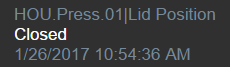
Google Chrome + F12 で確認できます。

しかし、時にそのフォントを変更したいときもあります。たとえば以下のようにです。
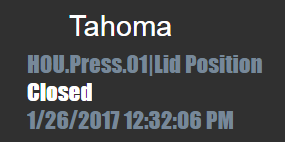
どのようにすればフォントの設定を追加することができるのでしょうか。
値オブジェクトのコードを変更することでフォント設定の追加が可能です。
なお、変更前にオリジナルはバックアップを取っておくようにしましょう。
コードの変更は自己責任で実施してください。
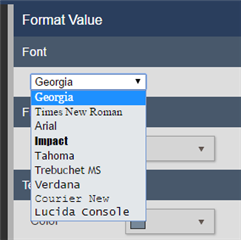
まず、フォントのプルダウンをconfig fileに追加します。(ファイル内の最上部に追加します)
C:\Program Files\PIPC\Coresight\Scripts\app\editor\symbols\sym-value-config.html
<div class="c-side-pane t-toolbar">
 <span style="color:#fff; margin-left:10px;">Font</span>
</div>
<div class="config-option-format">
<select ng-model="config.fontFamily">
 <option style="font-family: Georgia">Georgia</option>
 <option style="font-family: 'Times New Roman'">Times New Roman</option>
 <option style="font-family: Arial">Arial</option>
 <option style="font-family: Impact">Impact</option>
 <option style="font-family: Tahoma">Tahoma</option>
 <option style="font-family: 'Trebuchet MS'">Trebuchet MS</option>
 <option style="font-family: Verdana">Verdana</option>
 <option style="font-family: 'Courier New'">Courier New</option>
 <option style="font-family: 'Lucida Console'">Lucida Console</option>
</select>
</div>
config.fontFamilyという変数を使用してフォント名を取得します。以下のような表示となります。
今度は見た目を変更するため、template file を変更します。
C:\Program Files\PIPC\Coresight\Scripts\app\editor\symbols\sym-value-template.html
ここでは、value-symbol-portionn-textのdiv内にng-style として'font-family':config.fontFamilyを追加するのみです。
<div class="value-symbol-portion-text" style="white-space:nowrap;text-align:left;overflow:hidden;" ng-style="{background: (Fill || config.Fill), 'font-size': fontSize, 'font-family':config.fontFamily}" ng-class="{'blink': Blink}">
さらにデフォルト値を.js fileに追記するのがよいでしょう。
C:\Program Files\PIPC\Coresight\Scripts\app\editor\symbols\coresight.sym-value.js
 getDefaultConfig: function () {
 var config = CS.SymValueLabelOptions.getDefaultConfig({
 DataShape: 'Value',
 Height: 60,
 Fill: 'rgba(255,255,255,0)',
 Stroke: 'rgba(119,136,153,1)',
 ValueStroke: 'rgba(255,255,255,1)',
 ShowTime: true,
 IndicatorFillUp: 'white',
 IndicatorFillDown: 'white',
 IndicatorFillNeutral: 'gray',
 ShowDifferential: true,
 DifferentialType: 'percent',
 ShowIndicator: false,
 ShowValue: true,
 ShowTarget: true,
 fontFamily : 'Arial'
 });
これで、たくさんのフォントが楽しめます。
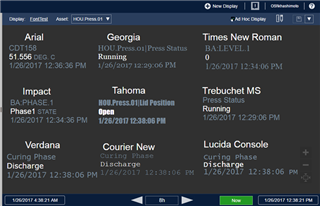
さらに、あなたの好きなフォントを.config fileに追加することもできます。
このサイトにはGoogleのフォントが表示されます。Windowsマシンではデフォルトでこれらのフォントは入っていません。
リンク先で+のアイコンをクリックすることで、フォントのリンクが表示されます。
複数フォントを選択することも可能です。
このリンクをtemplate fileに張り付けます。
C:\Program Files\PIPC\Coresight\Scripts\app\editor\symbols\sym-value-template.html
ファイルの最上部に<head>とともに追記します。
<head>
<link href="https://fonts.googleapis.com/css?family=Dancing+Script" rel="stylesheet">
</head>
config fileにもオプションを追加します。
<option style="font-family: 'Dancing Script'">Dancing Script</option>
こうして、Dancing ScriptフォントをPI Coresightで使用することができました。

同じことがプレーンテキストでもできます。
sym-statictext-config.html
前回のValueシンボルと同様です。
sym-statictext-template.html ('font-family':config.fontFamilyを追加しました)
 <div class="static-text-symbol"
 style="white-space:nowrap;text-align:left;overflow:visible;"
 ng-dblclick="showDialog()"
 ng-style="{background: (Fill || config.Fill), 'font-size': fontSize}"
 ng-class="{'blink': Blink}">
 <a ng-href="{{linkURL}}" ng-attr-target="{{config.NewTab ? '_blank': '_self'}}" rel="noreferrer">
 <span class="text-symbol-sizing-line"
 ng-class="{link: config.LinkURL}"
 style="font-family:Arial, Helvetica, sans-serif;display: inline-block;"
 ng-style="{color:config.Stroke, 'font-family':config.fontFamily}"
 ng-bind="config.StaticText">
これでプレーンテキストもフォントを変更できるようになりました。
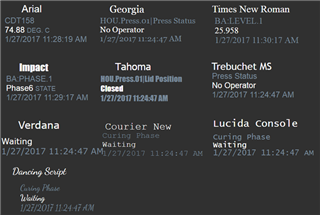
いくつかのフォントはサイズの関係でValueシンボルの範囲からはみ出し、切れて表示されてしまうことがわかっています。その場合サイズ変更などが必要です。
本ポストのGoogle FontsについてはJerome Lefebvre と協力して作成しました。