Getting data out of PI to a CSV

What is the best way to get data out of PI and into a CSV?


I have a new piece of software that wants a CSV updated every minute with PI data. There are about 1800 PI tags that will need to be pulled., and they are on different scan times. Some will update every 3 minutes up to every second. In the past  I have just used Excel to pull in PI tags with Datalink, and save that out to a CSV but we only do that once per day using Windows Task Scheduler. Not on a minute by minute basis. With 1800 tags and the way Excel 365 works with Datalink now this will take longer than 1 minute to extract the data and write the file. Is there a better way to set this up?


The application is Braincube. They have an interface they can setup to the plant system, but  with the way our security is setup it'll never get done. Infosec and the admins will never allow it.


Anyone else have experience with this?

Parents
  • Hi Joel


    You can use PI Powershell to get snapshot/Archive data :


    Sample Script :

    
    #PI Server 
    $piServerName = "Your_PISERVER" 
    #Source File Path (Note : Input Tags separated by new line)
    $SourceFile = "D:\InputTags.txt" 
    #Output folder where result should be stored 
    $OutputFolder = "D:\Output\" 
    #Output file name
    $NewFileName = "SnapshotData_"+ $Timestamp +".csv"
    
    
    #Connection to PI Server 
    $piConnection = Connect-PIDataArchive -PIDataArchiveMachineName $piServerName -AuthenticationMethod Windows
    #Get points from InputFile i.e. $SourceFile
    $Points = Get-Content $SourceFile 
    
    
    #If file contains more than one point then enumerate all points and get data.
    ForEach($piPoint in $Points){
     
     #Get point attributes like Name, Pointtype etc..
     $pt = Get-PIPoint -Name $piPoint -Connection $piConn -AllAttributes
    
    
     #Below line only for debugging to check point Points = Get.
     Write-Host Data Write started for Tag $pt.Point.Name
    
    
     $results = Get-PIValue -PIPoint $pt -Time (ConvertFrom-AFRelativeTime -RelativeTime "*") -ArchiveMode Previous | Select TimeStamp, Value
    
    
     #Below line only for debugging to check results count i.e number of events fetched within the time range..
     Write-Host $piPoint has @($results).Count events in the time range
    
    
     #Check if result is empty i.e no values then skip the piPoint and next the next piPoint..
     if ($results -ne $null){ 
    
    
     #Write to file
     $myDestinationForData = "$($OutputFolder)$($NewFileName)"
     $fs = New-Object System.IO.FileStream $myDestinationForData ,'Append','Write','Read' 
     $myStreamWriter = New-Object System.IO.StreamWriter($fs) 
    
    
     #Check if the point type is digital. If Yes then get digital set else it will only give state id. 
     if ($pt.Attributes.pointtype -eq "Digital"){
     $digStateSet= Get-PIDigitalStateSet -Name $pt.Attributes.digitalset -Connection $piConnection
     #Write the result to file.
     ForEach ($result in $results){ 
     
     $rtimeStamp = $result.TimeStamp 
     $rvalue = $digStateSet[$result.Value.State] 
     $myStreamWriter.WriteLine("$($pt.Point.Name),$rTimeStamp,$rvalue") 
     }
     
     } 
     #Check if the point type is not digital then write value to file.
     else {
     ForEach ($result in $results){ 
     $rtimeStamp = $result.TimeStamp 
     $rvalue = $result.Value 
     $myStreamWriter.WriteLine("$($pt.Point.Name),$rTimeStamp,$rvalue") 
     }
     }
     }
     #Below line only for debugging to check point name and completion for single point.
     Write-Host Data Write Completed for Tag $pt.Point.Name
     $myStreamWriter.Close() 
     
     }


    If you are looking for compressed data then add two variables start , end time and change line 30


    $Starttime = (get-date 8:00:00).AddDays(-200)

    $Endtime=(get-date 9:00:00)

    $results = Get-PIValue -PIPoint $pt -StartTime $Starttime -EndTime $Endtime | Select TimeStamp, Value


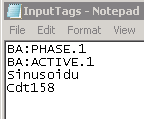
    Input file :


    pastedImage_4.png.png


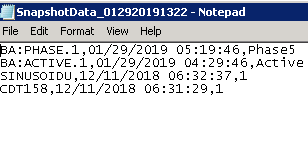
    Snapshot Output :


    pastedImage_5.png.png


    If your requirement is to generate the .csv file every day then you can specify start and end time.

  • This worked perfect with Marcelino's suggested edits. There must be some limit to how much data it can pull, for 1700 tags grabbing all data points in the last 5 minutes it output roughly 50k lines in a CSV but cut off alot of the data. I broke it into 2 separate scripts with half the amount of points in each and have it running under Windows Scheduler. The application wants flat files, so that's what I'm trying to get done.


    Now, to figure out how to give them 2 years of data across those 1700 tags....

Reply
  • This worked perfect with Marcelino's suggested edits. There must be some limit to how much data it can pull, for 1700 tags grabbing all data points in the last 5 minutes it output roughly 50k lines in a CSV but cut off alot of the data. I broke it into 2 separate scripts with half the amount of points in each and have it running under Windows Scheduler. The application wants flat files, so that's what I'm trying to get done.


    Now, to figure out how to give them 2 years of data across those 1700 tags....

Children
No Data